
The IPTV Installation Guide That Doesn’t Waste Your Time
Let’s cut straight through the noise. Every second page ranking for “IPTV installation guide” reads like it was written by someone who has never logged into a UK IPTV Reseller panel, never troubleshooted a frozen stream at midnight, and never dealt with a customer threatening a chargeback because their EPL feed dropped at minute 88.
This is not that article.
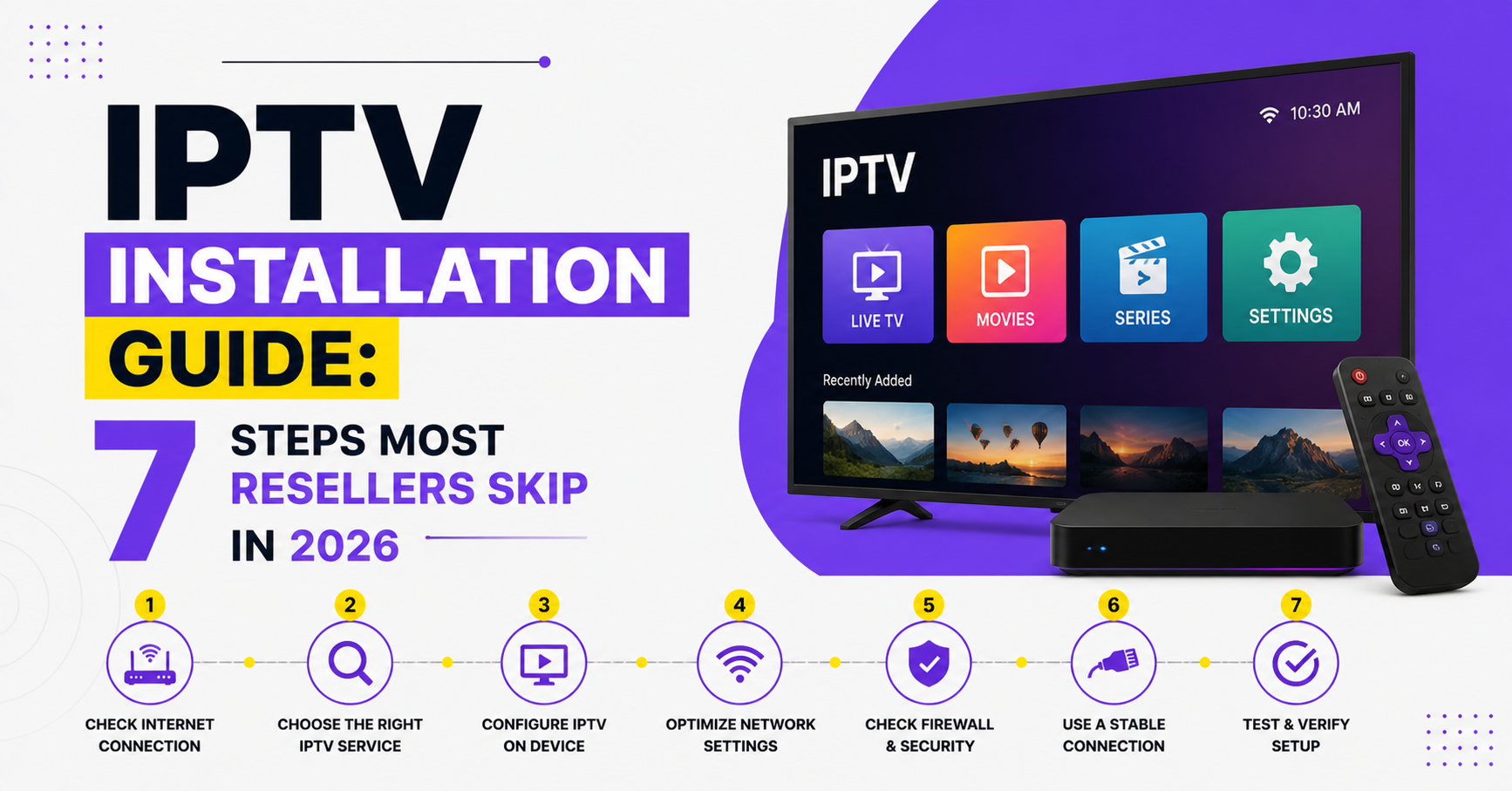
This IPTV installation guide was built from the operator side of the fence, where infrastructure decisions cost real money and bad installs lose real subscribers. Whether you’re setting up your first household connection or onboarding your fiftieth reseller, the difference between a clean install and a broken one is almost always in the details people skip.
So here’s what we’re actually going to cover: the full installation chain from choosing your panel source through to optimising playback on the end device, with the IPTV Panel reseller-specific headaches baked in at every stage.
What “Installation” Actually Means in a Reseller Context
Most IPTV installation guides treat setup like a single event, download an app, paste an M3U link, done. That framing is fine if you’re setting up one device for yourself. It falls apart completely when you’re responsible for dozens or hundreds of subscriptions running across different apps, devices, and ISP environments.
For resellers, installation is a chain with five links: panel provisioning (where you generate credentials), app selection and deployment on the subscriber’s device, connection configuration (Xtream Codes API, M3U, MAC-based), stream optimisation (buffer size, codec handling, DNS), and ongoing maintenance and troubleshooting protocol.
Break any single link and the subscriber’s experience degrades. The rest of this IPTV installation guide walks through each one with the precision they actually require.
Choosing Your Panel Source Before You Install Anything
Installation doesn’t start on the device. It starts with the panel. And the panel you resell from determines every limitation your subscribers will hit, channel availability, catchup depth, EPG accuracy, and stream stability under load.
Before you generate a single subscription line, evaluate your provider on three axes. Uplink redundancy comes first, does the provider run backup servers? A single-origin panel means one outage kills every subscriber you’ve onboarded. Credit flexibility matters too, are you locked into rigid credit bundles, or can you scale purchasing with demand? Providers like those listed at britishseller.co.uk offer tiered credit systems that let resellers grow without overcommitting capital upfront. And API access rounds this out, can you connect via Xtream Codes API, or are you limited to M3U only? API access unlocks better app compatibility and EPG integration.
Pro Tip: Never commit more than 20% of your monthly budget to a single panel provider until you’ve stress-tested their infrastructure during a premium sports weekend. That’s when weak servers expose themselves.
The Device Landscape in 2026: Where Installation Must Adapt
Here’s where most generic guides become useless, they assume everyone is installing on the same device. Reality in 2026 looks nothing like that.
Your subscribers are spread across Amazon Firestick (still dominant in UK households), Android TV boxes (budget and mid-range), Formuler and BuzzTV (MAC-based, panel-locked), Smart TVs with native app stores (Samsung Tizen, LG webOS), mobile devices (Android and iOS, growing fast), and Windows PCs and laptops (less common, but steady).
Each platform has different app availability, different sideloading requirements, and different playback engine behaviour. Your IPTV installation guide needs to account for this fragmentation or you’ll spend half your day answering the same support tickets.
The table below breaks down install method and common pain points by device:
| Device type | Primary install method | Common pain point |
|---|---|---|
| Firestick | Sideload via Downloader app | Storage limits, auto-updates breaking sideloaded apps |
| Android TV Box | APK direct install or Play Store | Codec incompatibility on cheap chipsets |
| Formuler/BuzzTV | Built-in portal, MAC registration | Portal URL entry errors, DNS caching |
| Smart TV (Tizen/webOS) | Native store apps (limited) | No sideloading, restricted app selection |
| Mobile | Play Store / TestFlight | Battery drain, background kill on Android OEMs |
Firestick Installation: The Walkthrough That Skips Nothing
The Amazon Firestick remains the single most common device your subscribers will use. Getting this installation right eliminates roughly 60% of your support volume. Here’s the walkthrough specifically for Firestick, built from handling thousands of these.
Step one is enabling Developer Options. Navigate to Settings → My Fire TV → Developer Options. Toggle “Apps from Unknown Sources” to ON. On newer firmware, you may need to toggle this per-app rather than globally.
Step two is installing the Downloader App. Search for “Downloader” by AFTVnews in the Amazon Appstore. Install it. This is your sideloading gateway.
Step three is obtaining the APK URL. Your panel provider or app developer will supply a direct download link. Paste this into Downloader’s URL bar. Avoid shortened URLs, they often redirect through ad walls that confuse Firestick’s limited browser.
Step four is installing and configuring. Once the APK downloads, hit Install. Open the app. Enter the connection details, which brings us to the next critical section.
Pro Tip: After every Firestick install, disable automatic firmware updates. Amazon pushes updates that occasionally reset sideloading permissions or break installed apps. Your subscribers won’t know what happened, they’ll just call you.
Xtream Codes API vs M3U: Which Connection Method Survives 2026
Every IPTV installation guide must address this decision because it affects everything downstream, EPG loading, catchup functionality, channel sorting, and even how quickly ISP deep packet inspection flags the connection.
Xtream Codes API remains the preferred method for serious resellers. It delivers structured data (server URL, username, password) that apps parse into organised categories. EPG data loads automatically. Catchup and VOD sections populate without manual playlist editing. Most importantly, API connections allow apps to handle stream switching more gracefully, reducing buffering during server-side load spikes.
M3U playlists are flat files. They work, but they’re brittle. Every channel change requires the app to re-parse the entire list. EPG has to be loaded from a separate URL. And M3U files cached locally become stale, meaning subscribers end up watching dead links days after a server migration.
For your installation approach to remain relevant, always default to API connections unless the subscriber’s device physically cannot support them (some Smart TV apps only accept M3U). API setup needs the Server URL plus Port, Username, and Password. M3U setup needs the full playlist URL (usually auto-generated from the panel). And the EPG URL is a separate field that must match the provider’s XML source.
DNS Configuration: The Silent Killer of Clean Installs
You’ve done everything right. App installed, credentials entered, channels loading. Then, buffering. Constant, infuriating buffering. And it’s not the server. It’s not the internet speed. It’s DNS.
This is where an installation guide separates itself from the amateurs. DNS resolution speed directly impacts how quickly your subscriber’s device connects to the stream server. ISP-default DNS is almost always slower and, in 2026, increasingly likely to be filtered.
Recommended DNS configuration at the device level uses 1.1.1.1 (Cloudflare) as primary, 8.8.8.8 (Google) as secondary, and 9.9.9.4 (Quad9, unfiltered) as an alternative.
Set these in the device’s network settings, not just the app. On Firestick, this means going into Settings → Network → select your Wi-Fi → Advanced → IP Settings → Static, then entering DNS manually while keeping everything else identical.
Pro Tip: DNS poisoning by ISPs is escalating in 2026, particularly across UK and European networks. If a subscriber reports that specific channel categories vanish intermittently, it’s almost always DNS-level interference, not a panel issue. Switching to encrypted DNS (DoH) where the device supports it is becoming a necessary step in every installation.
Buffer Settings and Player Engine Selection
Most subscribers never touch playback settings. Most IPTV Panel resellers never tell them to. This is a mistake that generates more support tickets than any server outage.
The installation guide needs a dedicated section on player configuration because default settings are almost never optimal for live streams. Here’s what to adjust.
Buffer size should be set to 2000 to 5000ms for live TV. Going higher causes delay; going lower causes stuttering on unstable connections. The sweet spot depends on the subscriber’s internet consistency, not just speed.
Player engine choice matters too. Apps like TiviMate and XCIPTV offer multiple player options, typically ExoPlayer (default on Android), VLC engine, or a built-in hardware decoder. ExoPlayer handles HLS latency better on modern devices. VLC engine works better on older hardware with limited RAM.
Hardware acceleration should be enabled on any device with a dedicated GPU, but disabled on sub-£30 Android boxes that run cheap Allwinner or RockChip processors, they’ll crash under hardware decode load.
For 4K content, hardware acceleration should be on with a buffer of 3000ms minimum. For SD/HD live channels, software decode is acceptable with a 2000ms buffer. For VOD playback, use a 5000ms buffer, and any player engine works.
The VPN Question: Addressing It Honestly
No installation guide in 2026 can ignore VPNs. Not because every subscriber needs one, but because enough do that you’ll face the question weekly.
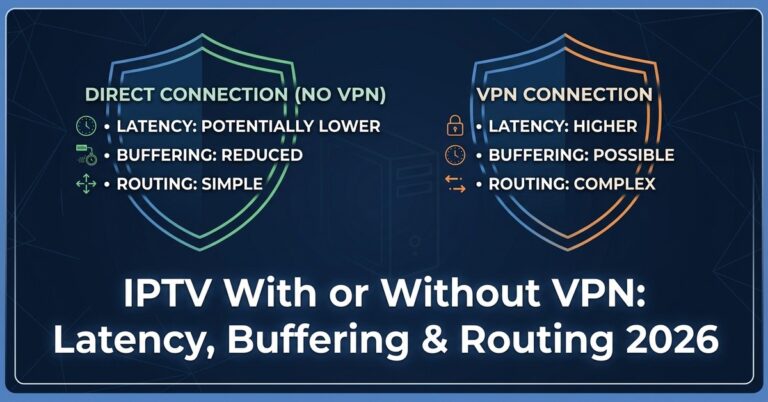
The honest answer is nuanced. A VPN adds encryption that prevents ISP-level deep packet inspection from identifying IPTV traffic. This matters in regions where ISPs actively throttle or block streaming protocols. It does not matter in regions where ISPs don’t inspect traffic at all.
Recommend a VPN when the subscriber reports sudden speed drops only during peak streaming hours, when specific channel categories load but buffer immediately, or when the ISP is known for aggressive traffic management policies.
A VPN makes things worse when the subscriber’s internet speed is already marginal (under 25Mbps), when the VPN server is geographically distant from the IPTV server, or when using free VPN services that throttle bandwidth themselves.
For resellers, the play is to have a recommended VPN partner and a one-page setup guide ready, not to make it a default installation step. Adding VPN complexity to every install doubles your support burden for marginal benefit on connections that don’t need it.
Load Balancing Awareness for Resellers Running Multiple Panels
This section won’t apply to someone installing IPTV on a single Firestick. But if you’re a reseller scaling past 100 active subscriptions, your installation process needs to include infrastructure-side awareness.
Load balancing is how your upstream provider distributes viewer connections across multiple servers. When it works, 5,000 people can watch the same premium sports stream without a single buffer. When it fails, everyone buffers simultaneously and your support channels explode.
What to ask your panel provider: How many origin servers back the panel? Is there automatic failover if one server drops? Do they use geographic load balancing (routing users to the nearest server)?
Here’s how different infrastructure models compare in risk terms:
| Infrastructure model | Typical behaviour | Risk level |
|---|---|---|
| Single origin, no failover | One server handles everything | Critical — total outage on failure |
| Multi-origin, manual failover | Admin switches servers manually during outage | High — depends on provider response time |
| Multi-origin, automatic failover | Traffic reroutes within seconds | Low — resilient under pressure |
| CDN-backed with edge caching | Content cached closer to viewers | Lowest — best performance and redundancy |
Pro Tip: If your provider can’t answer load balancing questions clearly, they’re running single-origin infrastructure. Don’t discover this during a Champions League evening. Test before you commit credits.
Post-Installation: The Subscriber Handoff That Prevents Churn
The installation is done. The channels work. The subscriber is happy, for now. What separates a reseller who retains subscribers from one who bleeds them is what happens in the 48 hours after installation.
Your post-install protocol should include sending a brief setup confirmation with the subscriber’s login details (server, username, password) so they can reconfigure if something resets. Set expectations on EPG loading, it can take 6 to 24 hours for full programme data to populate on first install. Provide a one-line troubleshooting step, “If channels stop loading, clear the app cache and restart the device before contacting support.” And follow up on day two with a quick check-in message. This single step reduces churn measurably because it catches issues before frustration builds.
Subscriber psychology is straightforward: the moment they feel abandoned after paying, they start looking at competitors. A quick follow-up costs you thirty seconds and saves a renewal.
Mobile Installation: The Growing Segment Resellers Underestimate
Roughly 30% of IPTV viewing in 2026 happens on mobile devices. Your installation approach must cover this because the install process carries unique pitfalls that don’t exist on TV-connected hardware.
On Android mobile, APK sideloading works identically to Android TV boxes, but battery optimisation settings on Samsung, Xiaomi, and OnePlus devices aggressively kill background apps. After installing the IPTV app, navigate to Settings → Battery → App Power Management and exempt the app from optimisation. Without this step, streams will die the moment the screen turns off.
On iOS, app availability is severely limited. Most IPTV apps are not available on the Apple App Store. The ones that are (GSE Smart IPTV, IPTV Smarters) periodically get removed and re-uploaded under different developer accounts. For iOS subscribers, set the expectation that app continuity is not guaranteed and have a backup app recommendation ready.
Pro Tip: Mobile subscribers consume significantly less bandwidth per session but generate more support requests per capita than TV subscribers. Factor this into your pricing, many resellers offer a lower-cost “mobile only” tier to capture this segment without cannibalising full-price subscriptions.
Common Installation Failures and How to Diagnose Them Fast
No installation guide is complete without a troubleshooting framework. Here are the five failures you’ll see most, ranked by frequency.
“No channels loading after entering credentials” is usually caused by wrong server URL format. Subscribers often miss the port number or add a trailing slash. Verify the exact format: http://serveraddress.com:port
“App installs but crashes on launch” typically comes down to insufficient device storage or incompatible Android version. Check available storage (minimum 500MB free) and OS version (minimum Android 5.0 for most apps).
“Channels load but buffer constantly” points to ISP throttling, weak Wi-Fi signal, or DNS issues. Run a speed test on the same device while connected to the same network. If speeds are adequate, switch DNS and test again.
“EPG shows wrong times or no data” usually means a timezone mismatch in app settings or EPG URL not configured. Ensure the app’s timezone matches the subscriber’s actual location.
“VOD works but live channels don’t” points to the panel’s live server being down while the VOD server remains operational. This is a provider-side issue, check your panel dashboard for server status before troubleshooting the subscriber’s device.
Keeping Installations Stable Through ISP Enforcement Waves
Here’s where experience speaks louder than any tutorial. ISP enforcement against IPTV traffic has shifted dramatically. In earlier years, blocks were crude, entire IP ranges restricted. In 2026, AI-driven traffic analysis identifies streaming patterns even through encrypted connections.
Prepare subscribers (and yourself) for this reality by rotating DNS providers quarterly, not just when something breaks. Advise subscribers to avoid dedicated IPTV-only connections, mixed traffic on the same network is harder for DPI engines to flag. And keep backup panel credentials ready so you can migrate subscribers without a full reinstall if your primary provider’s servers get blocked.
The resellers who survive enforcement waves aren’t the ones with the best panels. They’re the ones with the best contingency plans and the fastest migration protocols.
Frequently Asked Questions
How long does a typical IPTV installation take on a Firestick?
A clean installation takes approximately 8 to 12 minutes, including enabling developer options, sideloading the app, and entering Xtream Codes API credentials. First-time EPG population adds 6 to 24 hours passively. Resellers who pre-configure APK download links and send credentials before the subscriber starts can cut active installation time to under 5 minutes.
Can I use the same IPTV subscription on multiple devices simultaneously?
This depends on your panel provider’s multi-connection policy. Most reseller panels allow 1 to 2 simultaneous connections per subscription line. Exceeding the limit triggers an automatic disconnect on the first device. If your subscribers need multi-room access, generate separate lines or look for providers offering multi-connection credits at a slightly higher cost.
Why does my setup work on Wi-Fi but fail on mobile data?
Mobile carriers apply different traffic shaping rules than home ISPs. Some carriers aggressively throttle video streams detected through protocol analysis. Switching the app’s player engine from HLS to MPEG-TS, or using a VPN on mobile data, often resolves this. Also check that your mobile plan doesn’t cap video streaming quality, some “unlimited” plans restrict video to 480p.
What internet speed do I actually need for a stable IPTV experience?
For SD channels, 5Mbps is sufficient. HD requires a stable 15Mbps, and 4K content needs 35Mbps minimum, but consistency matters more than raw speed. A 50Mbps connection that fluctuates between 10 and 50 will buffer more than a steady 20Mbps line. Test with a wired Ethernet connection before blaming the IPTV provider.
Is the Xtream Codes API still safe to use in 2026?
The API protocol itself is a data delivery method, not a legal liability. It structures how your device communicates with the panel server. The enforcement risk sits with the content being accessed, not the API format. That said, API connections are slightly harder for basic ISP filters to disrupt compared to raw M3U playlist URLs, making them the more resilient choice for your installation setup.
How do I handle IPTV installation for subscribers who aren’t tech-savvy?
Create a visual step-by-step PDF or short video walkthrough specific to each device type. Limit it to 5 steps maximum. Provide pre-filled configuration details (server URL, username, password) in a single message they can copy-paste. Offering a remote installation service via TeamViewer or AnyDesk at a small fee converts support headaches into a revenue stream.
What should I do if my panel provider’s server goes down mid-installation?
Never attempt installation during known high-traffic periods (major sporting events, weekends between 7 to 10 PM). If a server drops during setup, check your provider’s status page or Telegram group before troubleshooting the device. Having credentials for a secondary backup panel lets you complete the install and migrate the subscriber later, this is a core resilience principle in any serious installation approach.
Do I need a separate installation guide for each app?
Broadly, no, the Xtream Codes API input fields are nearly identical across TiviMate, XCIPTV, Smarters Pro, and similar apps. The differences are in player engine options, EPG refresh intervals, and UI layout. Create one master guide covering API credential entry, then append device-specific notes for buffer settings and player configuration per app.
Your IPTV Installation Guide Success Checklist
- Vet your panel provider’s infrastructure before generating a single credit, test during peak load, not Tuesday afternoon.
- Standardise your install process per device type, Firestick, Android box, mobile, with copy-paste credential delivery.
- Default every connection to Xtream Codes API unless the device forces M3U.
- Configure DNS at the device level (1.1.1.1 / 8.8.8.8) on every single install, no exceptions.
- Adjust buffer settings and player engine per device capability, never rely on app defaults.
- Build a 48-hour post-install follow-up into your workflow to catch issues before they become churn.
- Maintain backup panel credentials so you can migrate subscribers within minutes, not hours.
- Prepare a one-page VPN setup guide for subscribers who report ISP-level throttling, don’t make it default, make it ready.
- Track your five most common support tickets monthly and update your installation approach to pre-empt them.
- Visit britishreseller.com to explore tiered IPTV reseller panel options with credit flexibility that scales with your subscriber base.