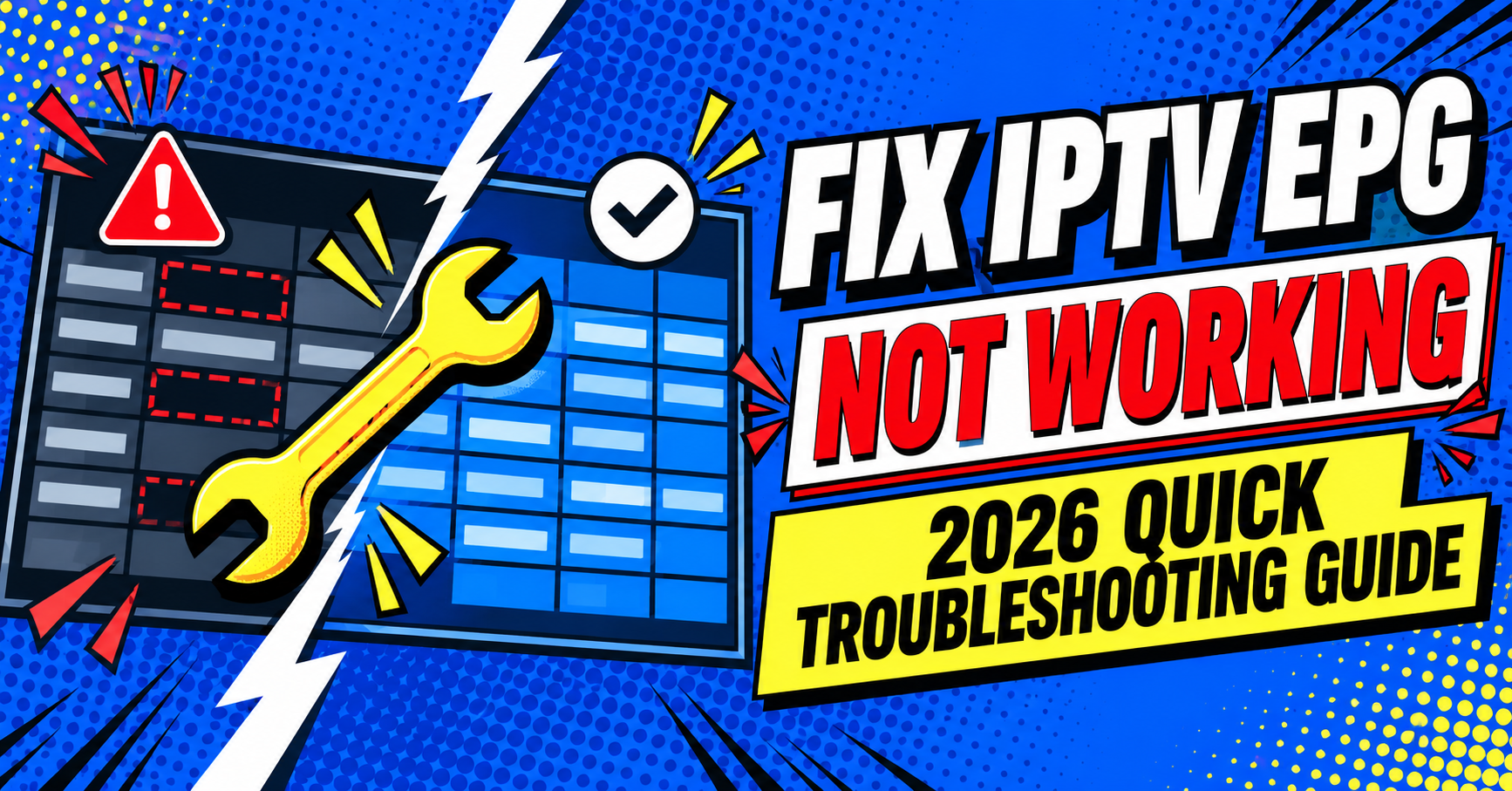

If your IPTV EPG is not working, the fault almost always sits in one of three places: the player app parsing the guide data badly, the XMLTV source feeding the wrong or incomplete information, or the panel-side EPG configuration pointing at a broken feed. Working out which one you’re dealing with takes minutes, and it saves you from reinstalling apps or restarting boxes for no reason.
Start With What “Not Working” Actually Means
“EPG not working” covers several different failures, and they don’t share a fix. A blank guide with no programme names at all is a different problem from a guide that loads but shows the wrong times, and both are different again from a guide where half your channels have data and the rest are empty. Before touching any settings, work out which of these you’re actually looking at, because the wrong fix wastes time and sometimes makes things worse by clearing a cache that was fine.
| Symptom | Likely source | First thing to check |
|---|---|---|
| Guide is completely blank | EPG URL missing or broken in the player | Confirm the XMLTV link is entered and reachable |
| Some channels have data, others don’t | Channel ID mismatch between playlist and EPG file | Compare tvg-id values against the XMLTV feed |
| Guide shows old or duplicate entries | Cached data not refreshing | Force an EPG refresh or clear the app’s guide cache |
| Times are wrong by an hour or more | Timezone mismatch in the XMLTV source | Check the timezone offset in the guide file, not the device clock |
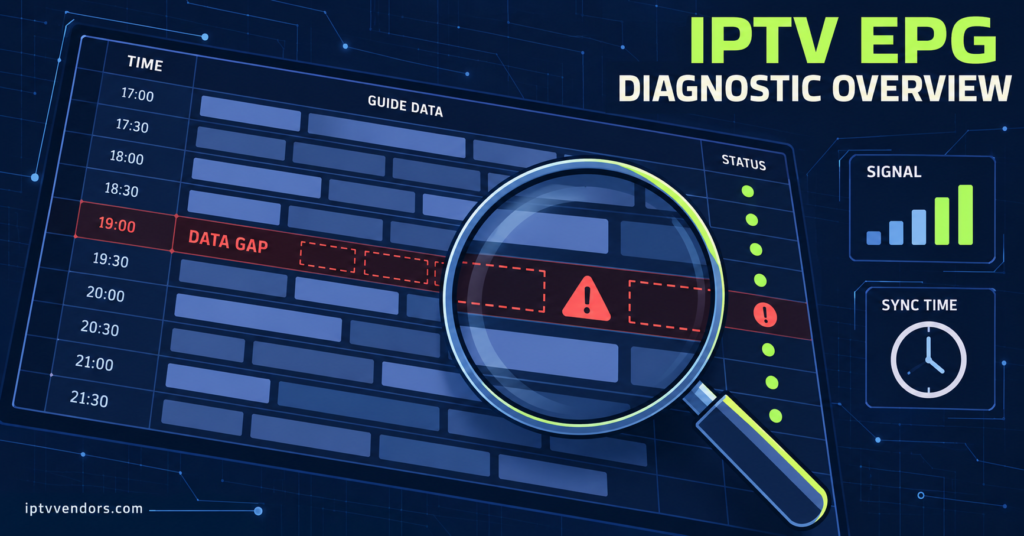
Why the Guide Loads With Nothing In It
A completely empty EPG is usually the simplest fault to trace, even though it looks the most alarming. Most players need an XMLTV URL entered separately from the playlist URL, and it’s easy to assume the two are linked automatically when they aren’t. Open the player’s playlist or source settings and confirm there’s an actual EPG address filled in, not just a stream link.
If the address is there and the guide is still empty, the file behind that URL may be timing out or returning nothing. XMLTV files can be large, and some players give up on the download if it takes too long or the connection drops mid-transfer. Pasting the EPG URL into a browser on the same network is a quick way to check whether the file loads at all before assuming the problem is inside the app.
Pro tip: If the URL loads fine in a browser but the app still shows nothing, delete and re-add the source rather than just refreshing. A partially cached blank guide sometimes sticks even after the underlying data is fixed.
Why Some Channels Have Data and Others Don’t
Patchy EPG data almost always comes down to channel ID matching. Every channel in an XMLTV file has an identifier, and the player needs the same identifier attached to the corresponding channel in your playlist. When a provider updates their channel list or renumbers a lineup, these identifiers can drift out of sync even though the stream itself keeps working perfectly.
This is the fault that gets blamed on the panel most often and is rarely the panel’s doing. It’s a mismatch between two separate files that happen to reference each other. Checking a handful of the affected channels against the raw XMLTV data, rather than assuming the whole feed is broken, usually narrows this down within a few minutes.
Why the Times Are Wrong
A guide that populates correctly but shows programmes at the wrong hour points to a timezone handling issue rather than a missing data problem. XMLTV files carry their own timezone offset for each listing, and if that offset doesn’t match what the player expects, everything shifts by a fixed amount, usually one hour, sometimes more depending on the source region.
Changing the device’s system clock does nothing here, because the mismatch lives inside the guide file’s own timestamps, not the box’s local time. If the offset is consistently wrong across every channel, the fix sits with whoever maintains the XMLTV source, not with the player settings.
A Practical Fix Sequence
Working through faults in a fixed order avoids the trap of changing three things at once and never knowing which one actually helped.
- Confirm the EPG URL is present and correctly entered in the player’s source settings.
- Load that URL directly in a browser to confirm the file itself is reachable and not returning an error.
- Force a manual EPG refresh inside the app rather than waiting for the scheduled update.
- Clear the app’s guide cache specifically, if that option exists separately from a full data wipe.
- Spot-check three or four channel IDs against the XMLTV file to rule out a matching problem.
- Try a second player app with the same source to confirm whether the fault travels with the data or stays with the app.
That last step matters more than people expect. Swapping between something like TiviMate and an alternative such as OttNavigator’s EPG handling on the same playlist tells you immediately whether the problem is app-side or source-side, because a source fault follows you between apps and an app fault doesn’t.
When the Fault Sits With the Player Instead
Not every guide fault is a data problem. Some apps handle large XMLTV files badly, particularly on older Android boxes with limited memory, and will simply fail to finish parsing a feed that a more capable app processes without issue. This shows up as a guide that loads for a while and then stops updating, or one that only ever shows the first handful of channels correctly. A breakdown of how different IPTV player handle EPG parsing is worth checking if you’ve ruled out the source and the fault still won’t clear.
Pro tip: Note the exact app version before reporting a fault to support. EPG parsing behaviour can change between updates, and a fix that worked last month sometimes stops working after the app auto-updates.
For Resellers: Where This Sits in Support Workload
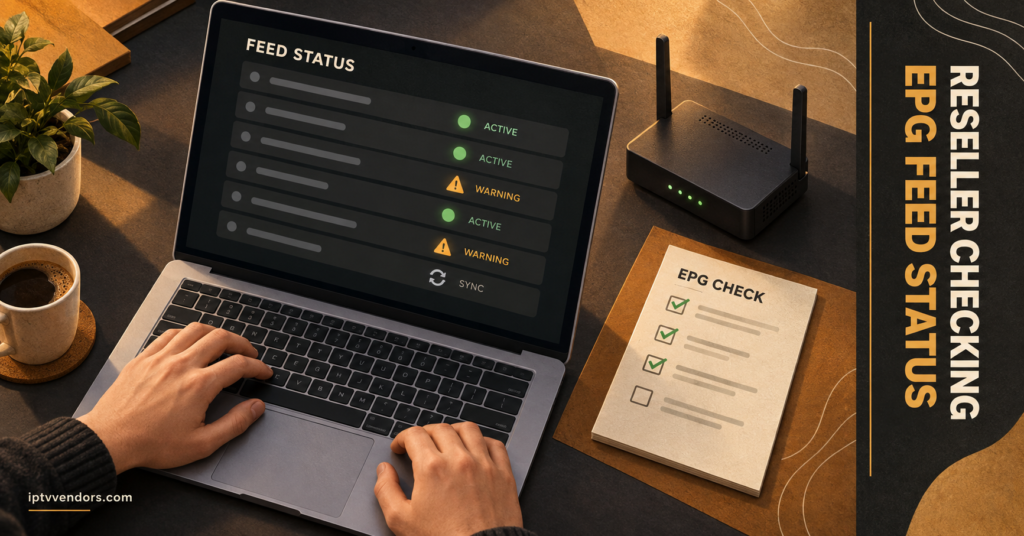
If you’re managing this on behalf of subscribers rather than for yourself, EPG complaints deserve a firmer triage process than most other support tickets, because the underlying causes are so varied. A single “no guide data” message could mean the customer’s app needs a source re-add, or it could mean your XMLTV feed IPTV Reseller panel provider has an outage affecting your entire customer base. Treating every EPG complaint as an isolated device issue means you miss the pattern until dozens of tickets have piled up.
Checking your own dashboard or feed status page before troubleshooting an individual customer’s app saves time on both sides. If the fault is widespread, a short proactive message to affected customers cuts down on repeat tickets far more effectively than fixing each one silently. This kind of pattern recognition sits alongside the broader operational habits covered in an IPTV subscription management guide, where EPG stability is one of several recurring support categories worth tracking over time.
Keeping It From Breaking Again
Once the guide is working, a few habits reduce how often you’re back here. Avoid switching XMLTV sources unnecessarily, since each change reintroduces the risk of a fresh channel ID mismatch. If your player supports a scheduled refresh interval, set it to something reasonable rather than the shortest option, because excessively frequent refresh attempts can strain the same connection that’s already struggling if the source is large. And if you maintain your own channel list, keep a record of the tvg-id values you’re using so a future playlist update doesn’t silently drift away from the guide file that’s supposed to match it.
Common Questions About IPTV EPG Not Working
Why does my EPG work on one device but not another?
Different apps parse XMLTV files with different tolerances. A feed with minor formatting quirks might display fine in one player and fail silently in another, which is why testing a second app is a useful diagnostic step rather than a workaround.
Does restarting the box fix EPG problems?
Occasionally, if the fault was a stalled download that a restart clears. It won’t fix a channel ID mismatch or a broken source URL, so treat a restart as a first quick check rather than the actual solution.
How often should EPG data refresh?
Most XMLTV sources update once or twice a day. Setting a player to refresh far more often than that doesn’t produce fresher data, since the source itself hasn’t changed, and it just adds unnecessary load.
Can a VPN affect EPG loading?
Yes, in some cases. If a VPN routes traffic through a region where the EPG source is blocked or rate-limited, the guide may fail to load even though the video IPTV stream works normally through a different connection path.
Is missing EPG data the same as a channel being down?
No. A channel can stream perfectly with no guide data attached, and a channel can have full guide data while the stream itself is offline. They come from separate parts of the system.
Getting the IPTV EPG Working Again
Sorting out an IPTV EPG that isn’t working comes down to identifying which of the three usual culprits you’re facing: a missing or broken source link, a channel ID mismatch, or a player that’s struggling to parse the file it’s been given. Working through the fix sequence in order, rather than guessing and changing several settings at once, gets most guides back to normal within a single session. If the fault turns out to be on the source side and keeps recurring, that’s worth raising directly with whoever maintains your XMLTV feed rather than repeatedly troubleshooting the same symptom from the player end.
Quick Troubleshooting Checklist
- Confirm the EPG URL is entered separately from the playlist URL
- Load the EPG URL in a browser to check it’s reachable
- Force a manual refresh before assuming the source is broken
- Clear the app’s guide cache specifically, not just the full app data
- Spot-check channel IDs against the XMLTV file for mismatches
- Test a second player app on the same source to isolate app-side faults
- Note the app version if you need to escalate to support
- Check your own feed status before troubleshooting individual customer devices, if you’re a reseller