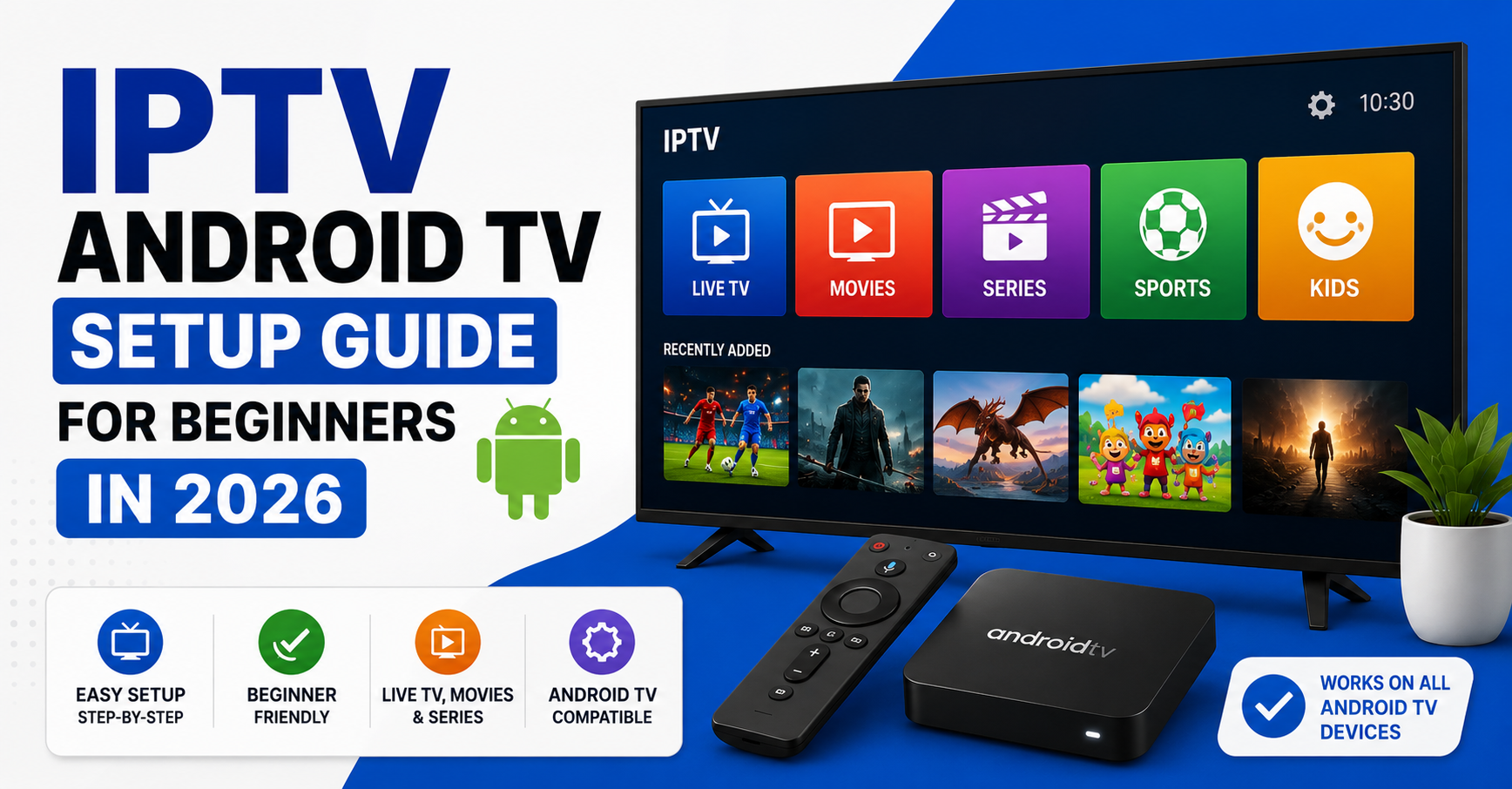

Let me save you forty-five minutes of watching some bloke on YouTube fumble through menus. IPTV Android TV setup shouldn’t require a degree in computer science, yet somehow half the guides floating around the internet manage to make it feel like rocket engineering. The reality? Once you understand what your Android TV device actually needs, and more importantly, what it doesn’t, you can go from unboxing to watching live channels in under ten minutes. No exaggeration.
The problem isn’t the technology. Android TV is arguably the most flexible platform for IPTV streaming available in 2026. The problem is that most guides bury the practical steps under paragraphs of filler about “the future of television.” You’re here because you want your IPTV Android TV setup running tonight, so that’s exactly what we’re going to do: walk through every configuration step, troubleshoot the errors that trip people up, and lock down performance settings that most users never discover.
Whether you’re setting this up for your living room, your parents’ house, or managing installations across dozens of subscribers as a IPTV reseller UK , every section ahead covers ground the previous one didn’t touch.
What You Actually Need Before Starting IPTV Android TV Setup
Before touching any app or entering a single URL, get your hardware and network sorted. Skipping this step is the number one reason people end up staring at a buffering wheel twenty minutes into their first session.
Your Android TV device needs to be running Android 7.0 or higher. Anything older introduces codec compatibility headaches that no amount of tinkering will fix. Most popular boxes in 2026, including devices built on Amlogic S905X4 and S928X chipsets, ship with Android 12 or 13, so this usually isn’t a concern. But if you’ve inherited an older box or picked one up second-hand, check your firmware version under Settings > About before going further.
Network matters more than the box itself. For a reliable IPTV Android TV setup, you need a minimum of 25 Mbps download speed dedicated to the device, not shared across six phones and a laptop.
- Ethernet connection preferred over Wi-Fi (eliminates 80% of buffering complaints)
- If Wi-Fi is your only option, use 5GHz band, never 2.4GHz for IPTV
- Position your router within line of sight if possible
- Disable any VPN on your router temporarily during initial setup
Pro Tip: Run a speed test directly on your Android TV device using the Analiti app, not on your phone. Your phone’s Wi-Fi chip and your TV box’s chip will report completely different numbers. The only speed that matters is the one measured at the device doing the streaming.
Sideloading vs Google Play: Where to Get Your IPTV Player
Here’s where IPTV Android TV setup starts diverging from regular app installation. Most serious IPTV players aren’t listed on the Google Play Store. Google’s policies around media streaming have tightened consistently since 2023, which means the apps your provider recommends probably need to be sideloaded.
Don’t let that word intimidate you. Sideloading simply means installing an app from a file rather than from the Play Store. Your Android TV can do this natively, you just need to flip one setting.
Navigate to Settings > Security & Restrictions > Unknown Sources and toggle it on for your file manager or browser. On newer Android TV versions, this permission is granted per-app rather than globally, which is actually more secure.
Now, for the actual IPTV player, your provider will typically recommend one of three formats:
| Player type | Best for | Drawback |
|---|---|---|
| Xtream Codes-based apps | Reseller panels, organised channel lists | Requires server URL, username, password |
| M3U playlist players | Manual playlist management, flexibility | No EPG integration out of the box |
| Stalker/MAC-based portals | Hotel-style interfaces, MAG emulation | Locked to specific portal URLs |
Your IPTV Android TV setup method depends entirely on which format your provider uses. If you received a username, password, and server URL, you’re working with Xtream Codes API. If you received a long URL ending in .m3u or .m3u8, you’re dealing with a playlist file.
Getting Xtream Codes API Right on Android TV
Most IPTV Android TV setup errors happen at the login screen. Not because people type credentials wrong, but because they enter them in the wrong format or miss a subtle field requirement.
Open your IPTV player app. You’ll see fields for:
Server URL (sometimes called Portal URL or Host)
Username
Password
The server URL is where people stumble. Your provider sends something like http://example.com:8080, and you need to enter it exactly as provided, including the port number. Don’t add /get.php at the end unless specifically told to. Don’t switch http to https on your own. Don’t drop the port number thinking it’s optional.
Pro Tip: If your IPTV Android TV setup keeps failing at the login stage, the issue is almost never your credentials. It’s either a DNS resolution failure on your network or your ISP is intercepting the connection. Switch your device DNS to a public resolver like 1.1.1.1 or 9.9.9.9 under your network settings before trying again.
Once logged in, the app will pull your channel categories, VOD library, and EPG data from the server. This initial sync can take anywhere from 30 seconds to 5 minutes depending on how large your provider’s channel list is. Don’t restart the app during this process, let it complete.
After the sync finishes, navigate to a live channel and verify playback. If video loads within 3 seconds, your IPTV Android TV setup is functioning correctly at the application layer. If it takes longer or buffers immediately, the problem lives in your network configuration or player settings, both of which we’re covering next.
Player Settings That 90% of Users Never Touch
Default settings on most IPTV players are designed for broad compatibility, not performance. Once your IPTV Android TV setup is technically working, these adjustments will transform the experience from “it works, kind of” to genuinely smooth playback.
Buffer Size Configuration
Your player’s buffer determines how many seconds of video it pre-loads before playing. The default is usually 1 to 2 seconds. For IPTV, especially on networks with variable latency, bump this to 5 to 8 seconds. Yes, channels will take slightly longer to switch, but you’ll eliminate mid-stream buffering almost entirely.
Hardware Decoder vs Software Decoder
Always set your decoder to Hardware first. Android TV devices have dedicated video decoding chips that handle HLS and MPEG-TS streams far more efficiently than software decoding, which taxes the CPU and causes frame drops on cheaper boxes. Only switch to software decoding if a specific channel shows visual artifacts, some older streams use codecs that certain hardware decoders don’t recognise.
- Set video decoder: Hardware
- Set audio decoder: Hardware
- Enable frame rate matching if your TV supports it
- Disable subtitle rendering if you don’t use subtitles (saves processing overhead)
EPG Timeshift
If your electronic programme guide shows incorrect times, your IPTV Android TV setup isn’t broken, the EPG source is using a different timezone offset. Most players have a timeshift setting. Adjust it in one-hour increments until the programme listings align with your actual local time.
Pro Tip: After changing buffer and decoder settings, force-close the app and reopen it. Some players cache the old configuration and won’t apply changes until a full restart, not just navigating back to the main menu.
The Real Reasons Your Setup Buffers (Hint: It’s Not Your Wi-Fi)
Everyone blames their internet connection first. And yes, sometimes it genuinely is bandwidth. But in 2026, with most households sitting on 50 to 200 Mbps connections, the bottleneck has shifted.
The three real culprits behind buffering on a properly completed IPTV Android TV setup are:
-
DNS Poisoning and ISP-Level Throttling
Major ISPs in the UK and Europe have become remarkably sophisticated at identifying IPTV traffic patterns. They don’t just block known server IPs anymore, they use deep packet inspection to identify HLS streaming signatures and throttle them selectively. Your speed test shows 100 Mbps but your IPTV streams buffer at 720p. Sound familiar?
The fix isn’t complicated but it’s essential. Change your DNS at the router level, not just on the device. Use DNS-over-HTTPS if your router supports it. Some users find that a lightweight VPN protocol like WireGuard, configured directly on the Android TV device, resolves throttling entirely without meaningful speed reduction.
-
Server-Side Overload During Peak Hours
Your provider’s infrastructure matters more than your home network. If their uplink servers can’t handle concurrent connections between 7pm and 11pm, no amount of local optimisation will help. This is a provider quality issue, and it’s the single biggest differentiator between a premium and budget IPTV service.
-
App Memory Leaks on Long Sessions
Older Android TV devices with 2GB RAM or less develop performance degradation after several hours of continuous IPTV use, as the player app slowly consumes more memory without releasing it. A simple fix: set a daily scheduled restart on your device, or manually restart the app every few hours during extended viewing.
IPTV Android TV Setup for Multiple Rooms: One Subscription, Multiple Screens
Families ask this question more than any other: can one IPTV subscription work on multiple Android TV devices throughout the house? The answer depends entirely on your provider’s connection policy.
Most IPTV reseller panels allow between one and four simultaneous connections per subscription. The IPTV Android TV setup process is identical on each device, same credentials, same server URL. But here’s where it gets nuanced.
If your provider allows two connections and three family members try to watch simultaneously, the third device will either get an error message or forcibly disconnect one of the active streams. There’s no queue system. No graceful fallback. Just a failed connection and a confused family member.
The smart approach for household setups:
- Ask your provider exactly how many connections your plan supports before configuring multiple devices
- Assign different content preferences to each device (one for sports, one for entertainment) to reduce simultaneous peak usage
- Consider a reseller panel if you need five or more connections, the per-connection cost drops significantly at scale
Pro Tip: If you’re a reseller managing IPTV Android TV setup across multiple subscriber households, create a one-page PDF setup guide with screenshots specific to the player app you recommend. It cuts your support tickets by half and builds trust with non-technical subscribers who would otherwise call you every time their box restarts.
Android TV Boxes vs Smart TVs With Built-In Android: Setup Differences That Matter
Not all Android TV is created equal, and this distinction causes real confusion during IPTV Android TV setup. A dedicated Android TV box running pure Android TV (like the Nvidia Shield, Mecool devices, or generic Amlogic boxes) operates differently from a Samsung or LG television that happens to run an Android-based operating system. The practical differences look like this:
| Feature | Dedicated Android TV box | Smart TV with Android OS |
|---|---|---|
| Sideloading support | Full, unrestricted | Often restricted or blocked |
| Unknown sources toggle | Available in settings | May require developer mode |
| Hardware decoding | Optimised for streaming | Varies by manufacturer |
| App compatibility | Broad IPTV app support | Limited to manufacturer store |
| Ethernet port | Standard on most boxes | Sometimes absent |
| Remote control | IR or Bluetooth, fully mappable | Manufacturer-locked |
If your smart TV restricts sideloading, your IPTV Android TV setup will require either enabling developer options (usually by tapping the build number seven times in the About menu) or using a wireless ADB connection from a phone or PC to push the APK file to the television.
For resellers, standardising on a single recommended box model eliminates ninety percent of setup variation. When every subscriber runs the same hardware, your troubleshooting guide covers one path instead of fifteen.
Securing Your IPTV Android TV Setup Against Common Threats
Once your IPTV Android TV setup is running smoothly, most people forget about security entirely. That’s a mistake, especially on devices that sit on your home network twenty-four hours a day.
Android TV devices, particularly budget boxes with infrequent firmware updates, are targets for malware that hijacks network traffic or mines cryptocurrency in the background. If your box suddenly feels sluggish despite no changes to your setup, a compromised device is a real possibility.
Immediate security steps after completing IPTV Android TV setup:
- Disable ADB debugging after setup is complete (Settings > Developer Options > USB Debugging off)
- Don’t install apps from random APK sites, only use links provided directly by your IPTV provider
- Check running processes periodically using an app like OS Monitor
- If your device supports automatic updates, keep them enabled
- Change the default device name from “AndroidTV” to something non-descriptive
For resellers managing multiple installations remotely, these security considerations multiply. A single compromised device on a subscriber’s network that gets traced back to an app you recommended creates a trust problem that’s difficult to recover from.
Pro Tip: If a subscriber reports that their IPTV Android TV setup “stopped working” after months of perfect operation, ask them whether they installed any new apps recently before troubleshooting your server or panel. Rogue apps that modify network settings or consume bandwidth are a surprisingly common cause of sudden IPTV degradation.
Troubleshooting the Five Most Common IPTV Android TV Setup Failures
After helping thousands of subscribers get configured, the same five issues account for roughly eighty percent of all IPTV Android TV setup problems. Here they are, in order of frequency, with fixes that actually work.
“Unable to Connect” or “Server Not Found”
Your DNS is the first suspect, so go to your Android TV network settings, switch from automatic DNS to manual, and enter 8.8.8.8 as primary and 1.1.1.1 as secondary. Retry the connection. If this solves it, your ISP’s default DNS was blocking the server domain.
App Crashes on Launch
Clear the app cache and data under Settings > Apps > [Your IPTV App] > Clear Cache, then Clear Data. If it still crashes, uninstall and reinstall the APK. On devices with less than 2GB RAM, closing all background apps first is essential.
Audio But No Video
This is a decoder mismatch. Open player settings and switch from hardware decoding to software decoding for video only. If that fixes it, the specific codec your provider uses for that channel isn’t supported by your device’s hardware decoder.
EPG Not Loading
Most EPG failures during IPTV Android TV setup stem from the EPG URL being outdated or the server taking too long to respond. Check with your provider for an updated EPG source. Some players let you set a custom EPG URL, use this to point to a faster mirror if available.
Channels Load But Buffer Every 30 Seconds
Increase your player buffer to 10 seconds, switch to a lower stream quality temporarily, and test. If the lower quality works flawlessly, your connection supports the bandwidth but can’t sustain it at peak quality. This usually points to ISP throttling rather than a raw speed issue.
Where Resellers Go Wrong Once They’re Running at Scale
If you’re running a reseller operation, your perspective on IPTV Android TV setup is fundamentally different from an individual subscriber’s. You’re not configuring one device, you’re responsible for ensuring that hundreds or thousands of setups work reliably, with minimal support overhead.
The biggest mistake resellers make is assuming subscribers will follow instructions. They won’t. Not because they’re incapable, but because written setup guides compete with their desire to just start watching. Every extra step in your IPTV Android TV setup process is a point where a subscriber might abandon the attempt and message you instead.
Reducing friction for subscriber setups:
- Pre-configure APKs with your server URL baked in, so subscribers only need to enter username and password
- Offer a maximum of two recommended player apps, not five
- Record a 90-second video walkthrough and send it with every new subscription
- Set default buffer and decoder settings server-side if your panel supports it
The resellers who scale successfully treat IPTV Android TV setup as a product experience, not a technical procedure. The easier you make the first five minutes, the lower your churn rate over the following months.
Pro Tip: Track which device models generate the most support requests. If a specific box consistently causes problems during IPTV Android TV setup, remove it from your recommended list entirely. One problematic device model can consume disproportionate support time across your entire subscriber base.
Keeping Your IPTV Android TV Setup Running Long-Term
The initial setup is only half the story. Maintaining reliable performance over weeks and months requires a handful of habits that most users neglect until something breaks.
Firmware updates on your Android TV device can occasionally break IPTV app compatibility. Before accepting any system update, check your provider’s community or support channel for reports of issues with the new firmware version. If others are reporting problems, delay the update until a compatible app version is released.
App updates from your IPTV provider should be applied promptly. Unlike firmware updates, these typically fix bugs and improve stream handling. Keep the APK update link your provider gave you bookmarked or saved, don’t search for it on random download sites, as modified APKs with embedded adware are common.
Periodic cache clearing prevents the gradual performance degradation that plagues long-running IPTV Android TV setup installations. Once a month, clear the cache on your IPTV player app. You won’t lose your favourites or login credentials, just temporary data that accumulates over time.
For households with children or less technical family members, consider using Android TV’s restricted profiles to prevent accidental changes to network settings or app configurations that could disrupt the setup.
Frequently Asked Questions
Does IPTV Android TV setup work on all Android TV boxes?
Most Android TV boxes running Android 7.0 or higher support IPTV app installation and playback. However, performance varies significantly by hardware. Devices with at least 4GB RAM and Amlogic S905X4 or newer chipsets deliver the most consistent experience. Budget boxes with 1GB RAM will struggle with HD streams and multitasking. Always verify your device specifications before purchasing specifically for IPTV use.
Can I use IPTV Android TV setup with a Wi-Fi connection only?
Yes, but with caveats. A 5GHz Wi-Fi connection with strong signal strength can support IPTV streaming adequately. However, ethernet remains the recommended connection method because it eliminates wireless interference, packet loss, and latency spikes that cause micro-buffering. If ethernet isn’t feasible, position your router within five metres of the device and ensure no competing devices are saturating the same frequency band.
How do I fix IPTV Android TV setup when my ISP blocks the service?
Changing your device DNS to a public resolver like 1.1.1.1 or 9.9.9.9 bypasses basic DNS-level blocks. For deeper packet inspection throttling, a lightweight VPN such as WireGuard configured at the device level typically restores full streaming speeds. Avoid free VPN services, they introduce latency and often sell usage data. A paid VPN with servers geographically close to your location adds minimal overhead.
Is IPTV Android TV setup different for Firestick devices?
Firestick runs Fire OS, which is based on Android but is not Android TV. The sideloading process differs, you’ll need the Downloader app from the Amazon App Store, and unknown sources permissions are located under Settings > My Fire TV > Developer Options. Once the IPTV app is installed, the player configuration and server login process is essentially identical to standard IPTV Android TV setup.
What’s the best IPTV player app for Android TV in 2026?
The best player depends on your provider’s infrastructure. For Xtream Codes API-based services, apps optimised for that protocol offer the smoothest experience with built-in EPG support and category management. For M3U playlist users, players that support multiple playlist formats and external EPG sources provide more flexibility. Ask your provider which app they officially support, using their recommended player ensures compatibility with their server configuration.
How many devices can I run IPTV Android TV setup on with one subscription?
This depends entirely on your provider’s connection limit per subscription. Most offer between one and four simultaneous connections. Attempting to exceed this limit will result in disconnection errors on additional devices. If you need more connections for a household or business setting, enquire about multi-connection plans or consider a reseller panel, which typically offers more flexible connection management.
Do I need a VPN for IPTV Android TV setup?
A VPN is not required for the setup process itself, but it can be necessary for reliable long-term streaming depending on your ISP’s policies. If you notice that channels buffer during peak hours despite adequate internet speed, ISP-level throttling is likely. A VPN encrypts your traffic so your ISP cannot distinguish IPTV streams from regular browsing, effectively bypassing selective throttling.
Can I transfer my IPTV Android TV setup to a new device?
Yes. Since your subscription credentials are server-side, you can enter the same username, password, and server URL on any new Android TV device. Your channel list, VOD library, and EPG will sync automatically. Favourites and local settings stored within the app on the old device will not transfer, you’ll need to reconfigure those. If your provider uses MAC-based authentication, you’ll need to register the new device’s MAC address with them before the setup will authenticate.
IPTV Android TV Setup, Reseller Success Checklist
- Verify your Android TV device runs Android 7.0+ and has a minimum 2GB RAM before beginning any IPTV Android TV setup
- Use ethernet over Wi-Fi for every installation where physically possible
- Change device DNS to a public resolver (1.1.1.1 or 9.9.9.9) as a default step in every setup
- Set player buffer to 5 to 8 seconds and hardware decoding as the default configuration
- Standardise on one or two IPTV player apps across your entire subscriber base
- Pre-configure APKs with your server URL to reduce subscriber setup friction
- Create a device-specific setup guide with screenshots for your recommended hardware
- Track support tickets by device model to identify problematic hardware early
- Schedule monthly cache clearing reminders for subscribers on older devices
- Disable ADB debugging on every device after completing IPTV Android TV setup
- Test every new firmware update on a spare device before recommending it to subscribers
- Visit britishseller.co.uk for premium IPTV reseller panels with reliable uplink infrastructure and dedicated support for scaling your IPTV business